_14e30a.png)
_8126ce.png)


NIM
Administrator
-
Joined
-
Last visited
Everything posted by NIM
-
Here's mine, nothing much changed from the last month
-
Ok, we'll continue more careful now. Jurg, you have mistaken twice, and once after I told you that you're using already used words. We won't add one more letter like Mc Nally suggested, as we'll continue to use a four letter word. I've collected all the letters that were valid and have removed duplicate words. Here are some rules to follow from now on: 1. Use only FOUR lettered word. 2. You can only change ONE letter at a time. 3. ALWAYS BOLD the letter you have CHANGED. 4. In each post quote all of the words used so far with your added to the list. 5. Please don't use any vulgar words. 5. Most Important: Use CTRL+F to search the page if the word you're goin' to use has already been used. 6. You're free to use a word in some sentence of yours, so it's a bit more interesting. Bypassing the rules means you're out of the game and won't be able to post in this topic anymore. Jurg, in spite of your mistakes you can continue to play, but no more warnings for you or anyone else. One mistake and you're out. I've looked through your fingers since McNally didn't bold the changed word in spite of me telling him to do so. From now on let's continue a clean and fair. PS. If you find a word that has been used twice from the quote bellow please let me know. I don't MIND to continue this game, if everybody will follow the rules!
-
-
I voted for Wacky since it wouldn't be fair to vote for myself :sweatingbullets:
-
You can try this small tool: http://www.dougknox.com/xp/utils/ShowDesktopShortcut.zip or you can do it manually: Open Notepad and enter the following text: [shell] Command=2 IconFile=explorer.exe,3 [Taskbar] Command=ToggleDesktop Save the new file as Show Desktop.scf then drag and drop the icon on the Quick Launch bar or whatever location you want the shortcut to appear.
-
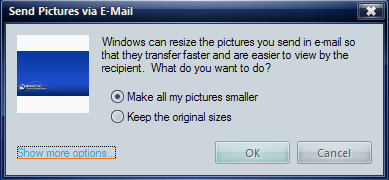
When you select an image file and click "E-mail this file" in the Common Tasks pane, the image resize dialog may not appear. This happens if the image file is not a natively supported type by Windows XP. The supported file types are the following: BMP DIB EMF GIF JFIF JPG JPE JPEG PNG TIF TIFF WMF If the file type is a natively supported image file type, and still the dialog does not appear, follow these steps: Click Start, Run and type regsvr32 shimgvw.dll Restart Windows for the changes to take effect.
-
TBH, I had troubles too with Vice Versa. If I choosed 2 source-target location it would freeze. I just mentioned it here since I coudln't remember its name while writing my first post in this topic :sleeping_03anim:
-
Of course mate. I'm using it also and have run on some small problems, but you'll figured it out too. You can also try shareware of Vice Versa, an excellent program for similar use. :thumbsup_anim:
-
Correct! BTW, if you find soundtrack somewhere, please let me know :icon_rolleyes:
-
Cheers wolf :thumbsup_anim:
-
It is Jackie Chan, but you haven't got the name of the movie right :sweatingbullets: It was one of favorite movies from my childhood. Here's another tip:

-
Microsoft has these suggestions for Protecting your computer from the various things that could happen to you/it: Protect your PC http://www.microsoft.com/athome/security/ Outfitting a new computer for the Net http://www.microsoft.com/athome/security/u...ewcomputer.mspx Getting started with a new PC http://www.microsoft.com/athome/moredone/yournewpc.mspx Although those tips are fantastic, there are many things you should know above and beyond that. Below I have detailed out many tips that can not only help you clean-up a problem PC but keep it clean, secure and running at its best. I know this text can seem intimidating - it is quite long and a lot to take in for a novice - however I can assure you that one trip through this list and you will understand your computer and the options available to you for protecting your data much better - and that the next time you go through these steps, the time it takes will be greatly reduced. Let's take the cleanup of your computer step-by-step. Yes, it will take up some of your time - but consider what you use your computer for and how much you would dislike it if all of your stuff on your computer went away because you did not "feel like" performing some simple maintenance tasks - think of it like taking out your garbage, collecting and sorting your postal mail, paying your bills on time, etc. I'll mainly work around Windows XP, as that is what the bulk of this document is about; however, here is some places for you poor souls still stuck in Windows 98/ME where you can get information on maintaining your system: Windows 98 and 'Maintaining Your Computer': http://www.microsoft.com/windows98/usingwindows/maintaining/ Windows ME Computer Health: http://www.microsoft.com/windowsME/using/c...ealth/articles/ Pay close attention to the sections: (in order) - Clean up your hard disk - Check for errors by running ScanDisk - Defragment your hard disk - Roll back the clock with System Restore Also - now is a good time to point you to one of the easiest ways to find information on problems you may be having and solutions others have found: Search using Google! http://www.google.com/ (How-to: http://www.google.com/intl/en/help/basics.html ) Now, let's go through some maintenance first that should only have to be done once (mostly): Tip (1): Locate all of the software you have installed on your computer. (the installation media - CDs, downloaded files, etc) Collect these CDs and files together in a central and safe place along with their CD keys and such. Make backups of these installation media sets using your favorite copying method (CD/DVD Burner and application, Disk copier, etc.) You'll be glad to know that if you have a CD/DVD burner, you may be able to use a free application to make a duplicate copy of your CDs. One such application is ISORecorder: ISORecorder page (with general instructions on use): http://isorecorder.alexfeinman.com/isorecorder.htm More full function applications (free) for CD/DVD burning would be: CDBurnerXP Pro http://www.cdburnerxp.se/ DeepBurner Free http://www.deepburner.com/ ImgBurn (burn ISO images) http://www.imgburn.com/ Final Burner http://www.protectedsoft.com/products.php Another Option would be to search the web with Pricewatch.com or Dealsites.net and find deals on Products like Ahead Nero and/or Roxio. Ahead Nero http://www.nero.com/ Roxio Easy Media Creator http://www.roxio.com/ Tip (2): Empty your Temporary Internet Files and shrink the size it stores to a size between 128MB and 512MB.. - Open ONE copy of Internet Explorer. - Select TOOLS -> Internet Options. - Under the General tab in the "Temporary Internet Files" section, do the following: - Click on "Delete Cookies" (click OK) - Click on "Settings" and change the "Amount of disk space to use:" to something between 128MB and 512MB. (Betting it is MUCH larger right now.) - Click OK. - Click on "Delete Files" and select to "Delete all offline contents" (the checkbox) and click OK. (If you had a LOT, this could take 2-10 minutes or more.) - Once it is done, click OK, close Internet Explorer, re-open Internet Explorer. Tip (3): If things are running a bit sluggish and/or you have an older system (1.5GHz or less and 256MB RAM or less) then you may want to look into tweaking the performance by turning off some of the 'resource hogging' Windows XP "prettifications". The fastest method is: Control Panel --> System --> Advanced tab --> Performance section, Settings button. Then choose "adjust for best performance" and you now have a Windows 2000/98 look which turned off most of the annoying "prettifications" in one swift action. You can play with the last three checkboxes to get more of an XP look without many of the other annoyances. You could also grab and install/use one (or more) of the Microsoft Powertoys - TweakUI in particular: http://www.microsoft.com/windowsxp/downloa...ppowertoys.mspx Another viable (decently inexpensive) option is to increase the amount of memory (RAM) your computer has. You can get an idea of what you need by visiting: Crucial Memory Advisor
-
She had prepared answer now or someone in the show said to her what to say :sweatingbullets:
-
I'm not sure that this software can do this but you can give it a shot. AllWay Synch
-
Click on the thumbnail to see the larger size. Sorry I couldn't find the better one. Here's another picture, but you were wrong, it's not Michael J. Fox and it's not Back from the future movie.

-
Here's one shot I took today, but the picture is very big. You guys can shrink it to match your desktop resolution :sweatingbullets:

-
LOL, don't be lazy :icon_cool:
-
Glad you finally got it mate :thumb_yello:
-
Rick gave info for everything related to the Sidebar here.
-
I checked the link for legal notice at author's pages, but all I can see is his contact details there. I guess he's willing to argue with Microsoft regarding this :sweatingbullets: Thx for clearing this out Cluberti.
-
Have you followed all instructions from the second post in this topic?
-
Not bad???? WTF, when will I have a connection like that??
-
-
Here's mine for this month:
-
Just wrote a small article about it HERE.